Photos and videos
In iPhone Storage settings, the space used by your photo library appears under Photos. Reviewing the library can help you keep only the items you still want.
Free up iPhone photo storage
Photos and videos can take up a substantial amount of space on your iPhone. PicVore helps you review your photo library, estimate the space used by selected items, and decide what to remove.

Understanding photo storage
In iPhone Storage settings, the space used by your photo library appears under Photos. Reviewing the library can help you keep only the items you still want.
PicVore focuses on the photo library. It does not manage or remove apps, messages, system data, caches, or other content outside your photo library.
More ways to review
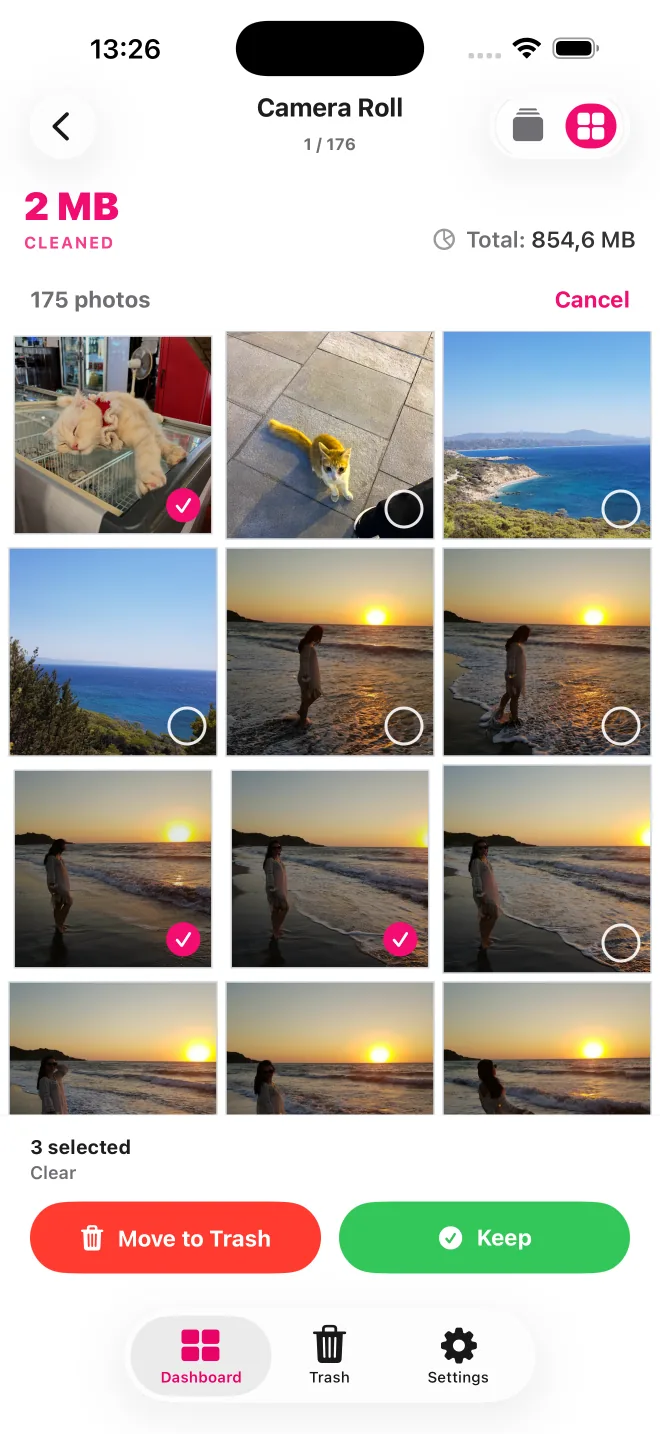
Review one item at a time with swipe controls, or switch to a grid where you can select several items to keep or move to Trash.

Photos with location metadata can appear in groups on an interactive map. Open a place to review only the photos in that group.

Start from a date or album, or open Screenshots, Portrait Photos, or Large Videos instead of searching the full library.
Start with the photo library
Swipe through screenshots, repeated shots, or other photos you no longer want in your library.
Group visually similar photos and near-duplicates before deciding which ones to keep.
See an estimate of how much space the selected items use before confirming removal.
Stay in control
PicVore keeps selected items in its own Trash so you can review them first. After you confirm removal, iOS and iCloud Photos settings can affect when storage becomes available.

In iPhone Storage settings, the space used by your photo library appears under Photos. Reviewing the library can help you keep only the items you still want. PicVore keeps selected items in its own Trash so you can review them first. After you confirm removal, iOS and iCloud Photos settings can affect when storage becomes available.
See an estimate of how much space the selected items use before confirming removal.
PicVore focuses on the photo library. It does not manage or remove apps, messages, system data, caches, or other content outside your photo library.
PicVore can be downloaded free of charge and includes daily limits. Optional weekly and annual auto-renewable Pro subscriptions include Unlimited Photo Review and remove those limits. Availability, prices, trial eligibility, renewal, and cancellation terms are shown in the app before purchase and may vary by country.
PicVore focuses on the photo library. It does not manage or remove apps, messages, system data, caches, or other content outside your photo library.
Get PicVore on the App Store